
Overview
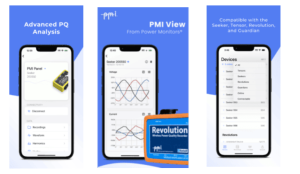
Power Monitors’ PMI View is a next-generation platform for viewing and analyzing power quality data. Designed for seamless interaction with field devices, PMI View enables users to:
- Connect via Wi-Fi or Cell
- View real-time waveforms, vector diagrams, harmonics, and meter readings
- Download, inspect, and export recordings effortlessly
PMI View provides a powerful and user-friendly experience for engineers and technicians working with PMI power quality instrumentation.
Recorder Compatibility
PMI View iOS is compatible with the following power quality recorders:
- Seeker
- Tensor
- Bolt
- Guardian
- Cell Revolution
iOS Compatibility Requirements
- Device: iPhone or iPad
- OS Version: iOS 18.0 or newer
- Internet Access: Required for PQ Canvass functionality and downloading the latest recorder firmware
General Communication Issues
If you experience connection problems, start with this checklist:
- Ensure both your iOS device and your recorder’s firmware are fully up to date.
(In most cases, updating the device firmware resolves connection issues. If you cannot connect, you can update recorder firmware using ProVision or PMI View for Windows.)
Wi-Fi Connection Tips
- Verify Wi-Fi and Bluetooth are turned on.
- Ensure Nearby Device Scanning is enabled in the PMI View app.
- On your iOS device, open the iOS Settings application, go to Wi-Fi, and confirm that the recorder’s Wi-Fi network appears in the list
(It will appear as the device model followed by its serial number.) - If issues persist, always attempt to add the device manually after completing the above steps.
Adding a Device Manually
- This connection option is usually used for connecting to a recorder’s IP address either via cell or wifi, or for manually scanning for local devices.

Step 1 Press the add button
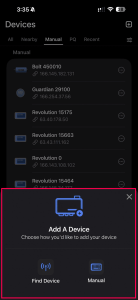
Step 2 Choose your manual connection method
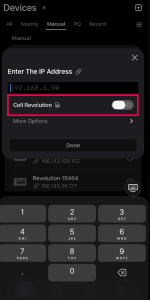
*When adding a Cell Revolution, be sure to select Cell Revolution as shown above*
TCP/IP Connection Tips
- Confirm you are using the correct IP address for the recorder and select the correct device when manually adding a cell connection.
- If connecting to an online device fails, try toggling the SSL option on or off while manually adding the connection.
*Note: Tensor, Seeker, and Bolt ship with SSL enabled by default and should be started with SSL on. Guardians with newer firmware also default to SSL. Revolutions do not support SSL.
Technical Support Contact
If you encounter issues beyond these steps, contact:
PMI Technical Support
Phone: 1-800-296-4120
Website: powermonitors.com
Support Downloads: powermonitors.com/downloads
Related Links
Ask a Pro: Introduction to PMI View
Ask a Pro: PMI View Feature Updates and Enhancements
Introduction to PMI View – White Paper
Streamlined PQ Analysis with the Latest PMI View Updates – White Paper